|
<< Click to Display Table of Contents >> Echo |
  
|
|
<< Click to Display Table of Contents >> Echo |
|
 Echo The Echo allows you to use existing content in the project in several places within Timeline. To mirror content with the Echo object, it is placed in a Flexi-Collage object. Such a Flexi-Collage marked as a "source" can then be automatically recognized by the Echo object, and targeted referencing by name at the Flexi-Collage is also possible. |
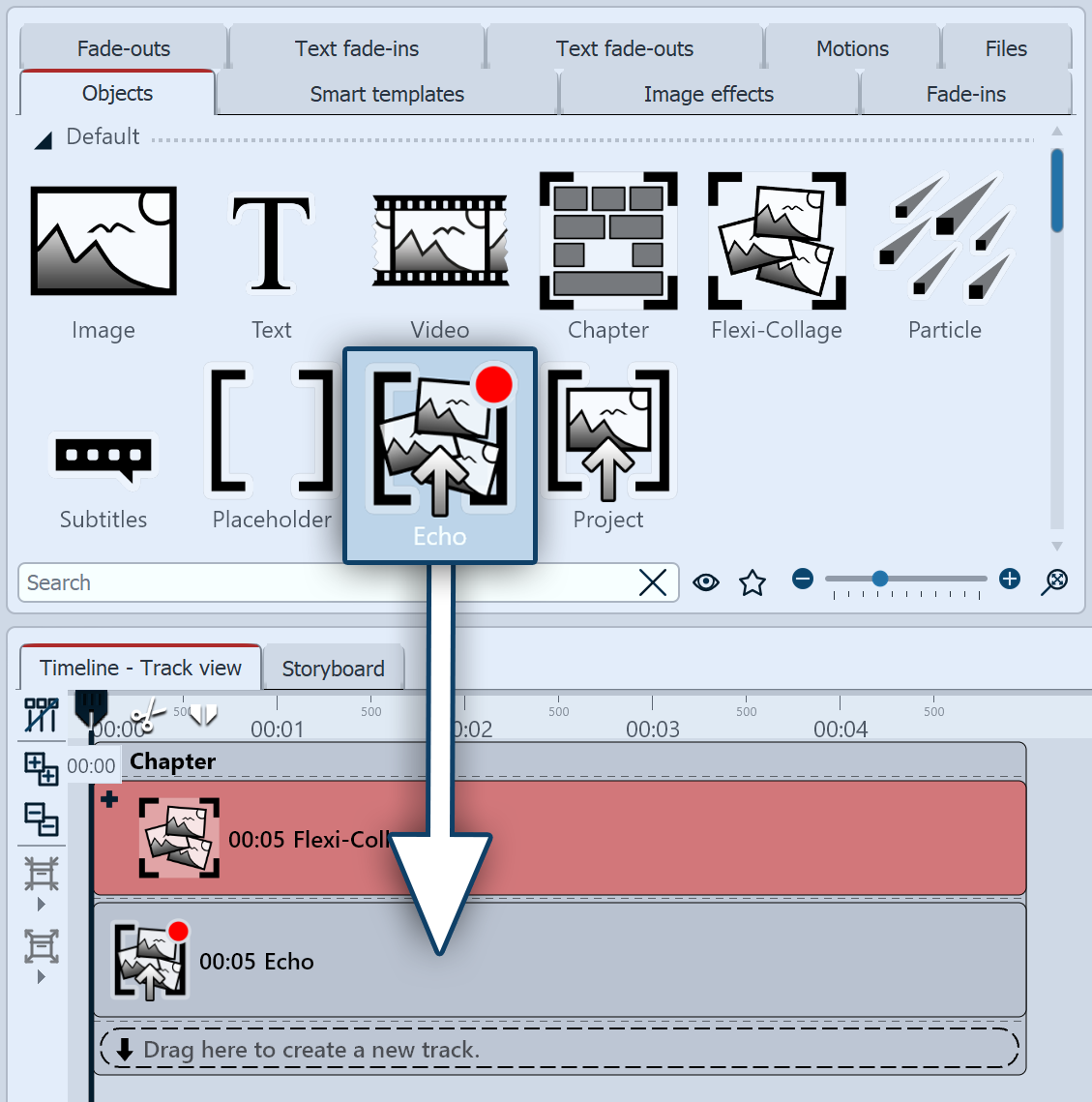 Insert Echo object 1 Using the Echo object To use the Echo object, you must always have an Echo source running at the same time. An appropriately marked Flexi-Collage serves as the echo source. The Flexi-Collage can contain just images or videos, but also complex collages, animations, or (mask) effects.
|
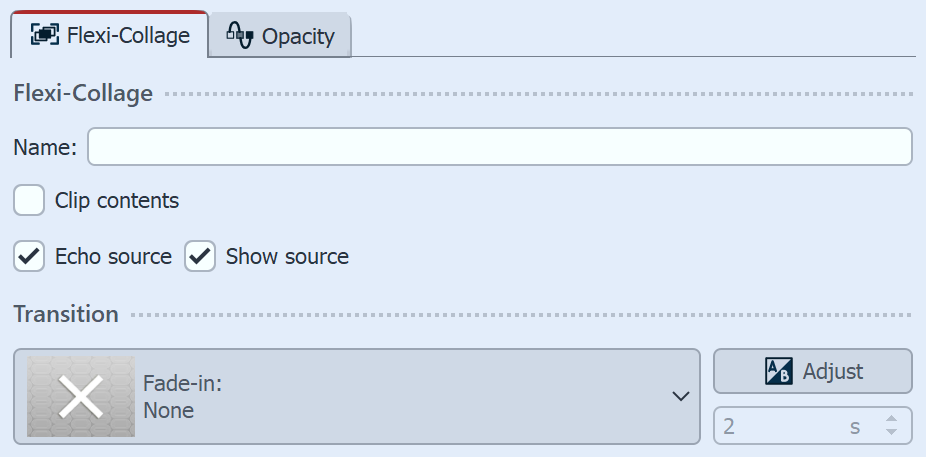 Flexi-Collage properties for the Echo function 2 Settings Flexi-CollageAll Flexi-Collages can serve as image sources. To make a Flexi-Collage available as a source, check the Echo source box in the Flexi-Collage's properties. Flexi-Collage can then be "seen" by the Echo object. Also decide whether the echo source itself should be displayed. To clearly identify the Flexi-Collage, it can be given a name. This allows for a unique reference to this source on the Echo object. This is recommended if multiple Flexi-Collages exist at the time the echo is executed. |
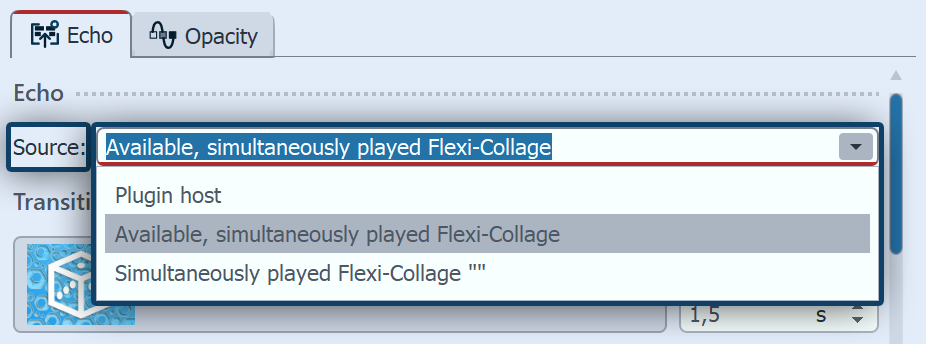 Echo properties 3 Settings Echo objectUsing the Source selection, you specify which Flexi-Collage the Echo should play back the content from and, if necessary, modify it with additional effects available on the Echo. - Available, simultaneously played Flexi-Collage: The source is automatically set to the Flexi-Collage, which is located in the highest track above the Echo object. - Simultaneously played Flexi-Collage "Name": The source can be selected via the name of the Flexi-Collage. - Plugin host: for playing external content The Echo object can be enhanced with live and object effects as well as transitions, and can be placed and animated anywhere in the Layout designer. The other properties of the Echo object correspond to those of the Flexi-Collage object. |
|
The video "Hallo, Echo!" shows some examples of where and how you can use the Echo object. |
To display a video multiple times in different colors as a collage, you could apply a layout effect to it four times. However, if you want to edit the video later, you would have to do so on all four videos.
Playback and editing become more efficient if the video is stored only once in the Timeline and is used as an echo in the desired number of instances. You can now edit, speed up, or replace the video with another clip even after the fact—and the change is made only once in the Echo source.
The following example shows a layout effect variation that uses the Echo object.
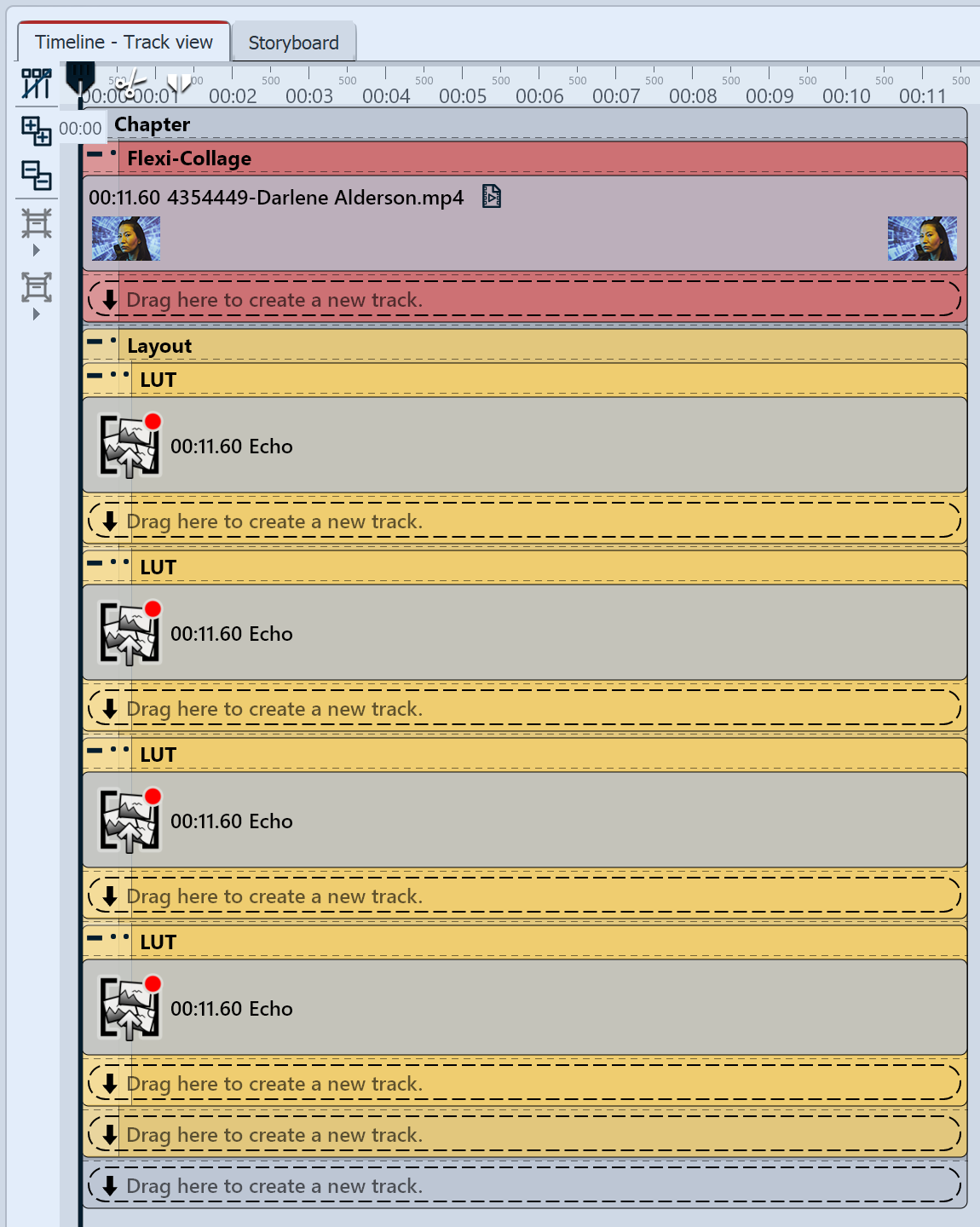 Example of using the Echo object 1 Insert an Flexi-Collage object into the Timeline and place a video inside it. In the properties, select the Flexi-Collage as the echo source and leave the Show source checkbox checked for now.2 Drag an Echo object from the Toolbox to the Timeline under the Flexi-Collage. In the Properties , set the source to Available, simultaneously played Flexi-Collage. Adjust the duration of the echo to match the duration of the Flexi-Collage. 4 Place the four echoes one below the other in the layout effect. In the layout effect properties, set the layout to Grid, horizontal. Set Border and Spacing to 0%. In the Flexi-Collage section, uncheck the Show source box. (You can actually use just three Echo objects and place the Flexi-Collage within the layout effect. For clarity, the version with four Echoes was chosen here. Depending on the effect and your own judgment, decide whether the source should be displayed or not.) 5 Drag the LUT effect (or other color effects) onto an Echo object and select different settings for the effect.
|
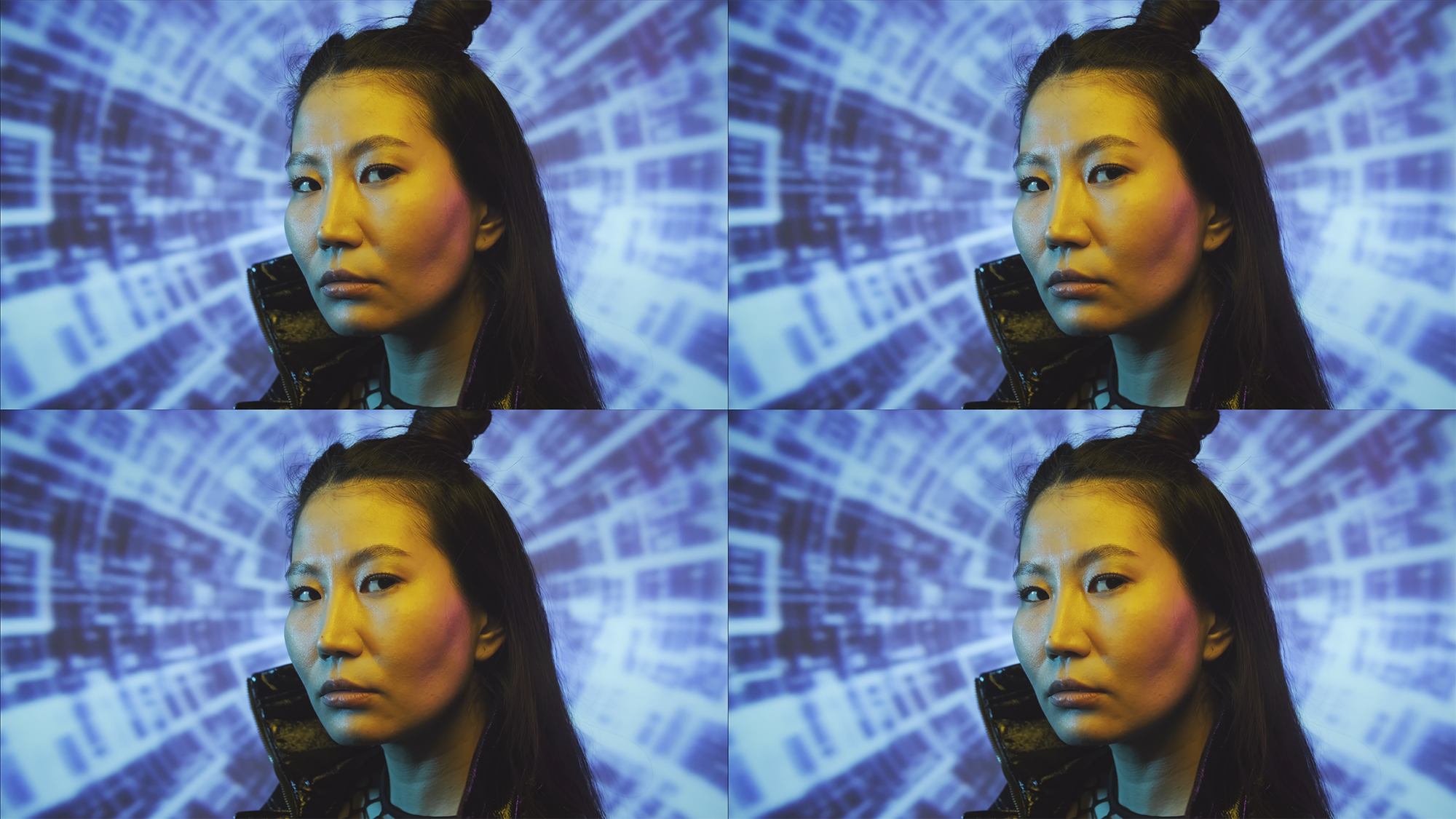 Four echoes without effect |
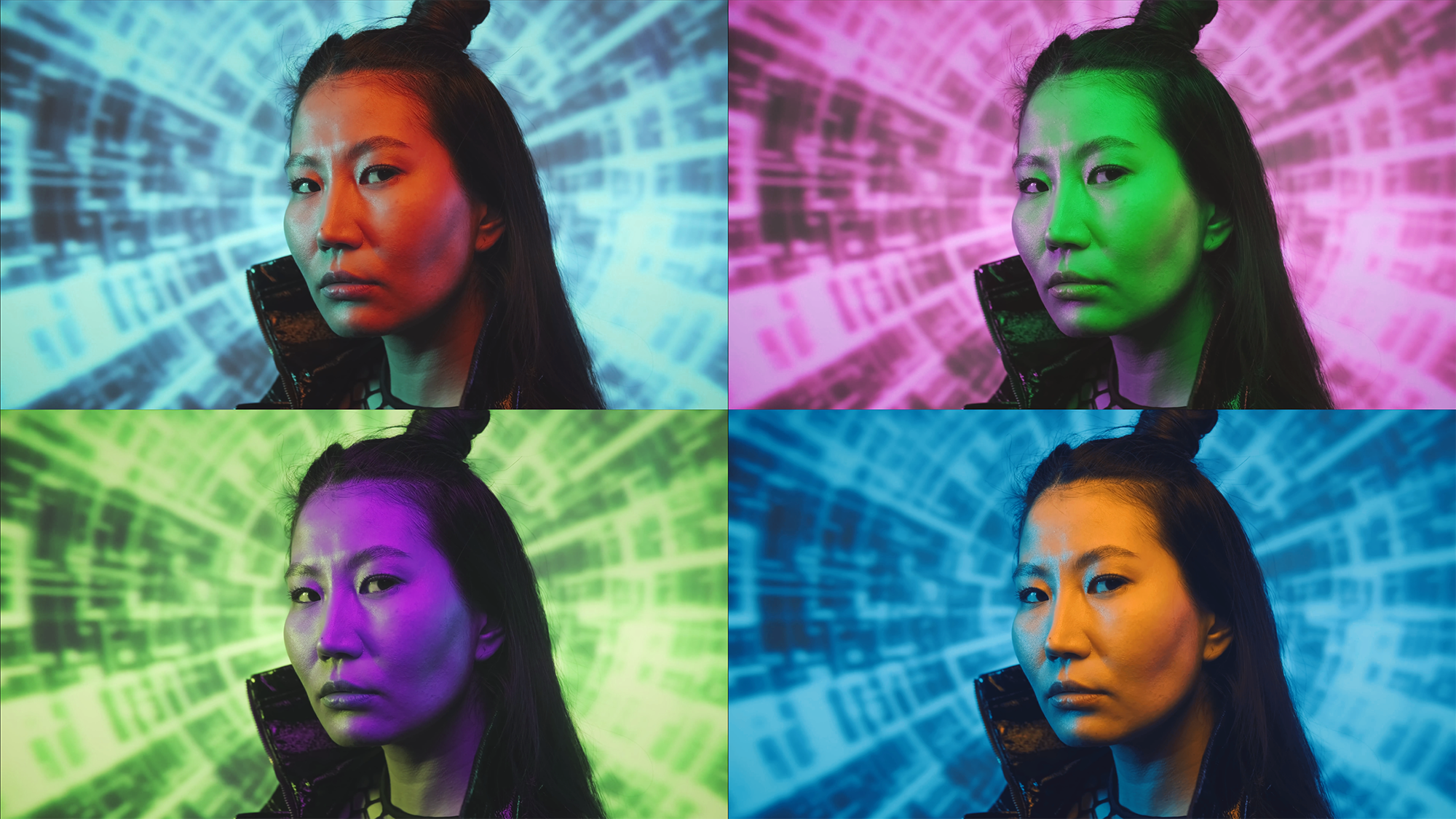 Echoes with LUT effects |