|
<< Click to Display Table of Contents >> Route animation with GPS metadata |
  
|
|
<< Click to Display Table of Contents >> Route animation with GPS metadata |
|
You can also map an itinerary using your photos and video recordings if your recordings are tagged with GPS information in the metadata.
You can see if your photos and videos contain this information, for example, by right-clicking an image or video in Windows File Explorer and opening its Properties. On the Details tab, you can view the geocoordinates, if available.
Proceed as described in detail in the previous chapter. Insert a map path object and click on Import path in the Map Wizard .
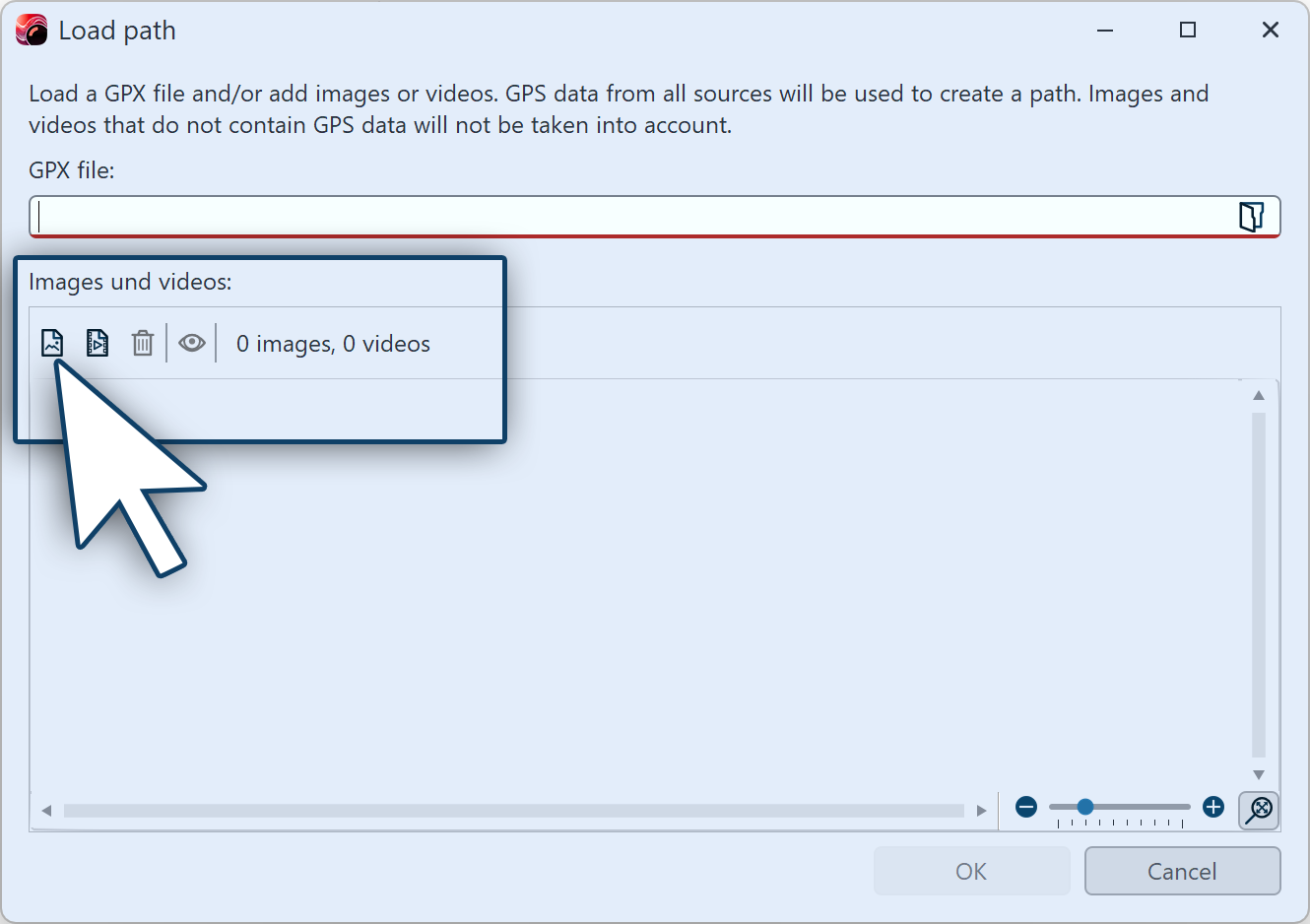 Import path Insert photos and videos with GPS informationClick on the insert symbol and select suitable photos and videos from your computer to create a route from their GPS data. A map matching the imported data appears in the Map Wizard with the route marked. You can change the appearance of the map in the Map Wizard under Map style and Hillshading. You can also edit the path as described in the Insert decorated path chapter. |