|
<< Click to Display Table of Contents >> Label images |
  
|
|
<< Click to Display Table of Contents >> Label images |
|
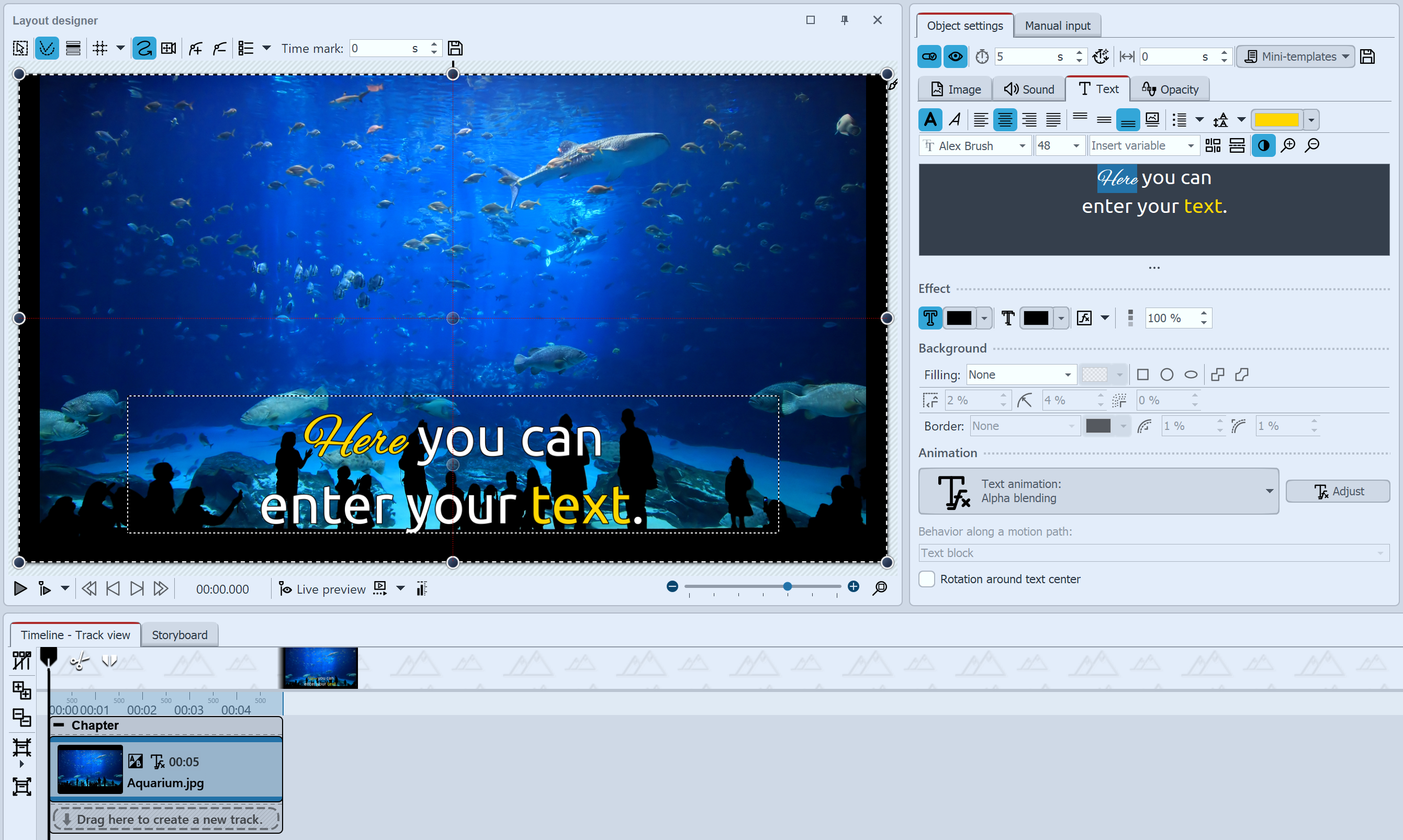 Text input for an image Insert an image. In the Properties area you will find the Text tab. If the Properties window is not displayed in your view, right-click the image and select Properties from the context menu. You can also activate the display via Workspace / Controls / Properties. |
To label an image object, click the Text tab in the Properties area. In the text field you can enter text and, after selecting the text, apply appropriate formatting, such as font, font size and font color. Under Alignment you can choose from the following options for positioning the text:
Enter the desired image caption in the text field. Select the text to change the default font and font size. Use CTRL + A to select all the text at once in the text box. If you want the text to be a specific color, select it first. You can then choose the color using the color picker (located to the left of the font selection). You can specify how the image caption appears and disappears in the Animation section. |
|
How to underline text is shown in our blog article "Text unterstreichen". |
|
The introductory video "Texte und Beschriftungen" provides everything you need to know as well as useful tips for working with text. |