|
<< Click to Display Table of Contents >> Installation and uninstallation |
  
|
|
<< Click to Display Table of Contents >> Installation and uninstallation |
|
Immediately after purchasing at www.aquasoft.de, you will receive a download link and the license key. If you have already installed the demo version, you can activate it directly with the license key. If you need the installation file again, you can download it at any time from your customer account at login.aquasoft.net.
If you purchased the software from a reseller, please register with your license key at login.aquasoft.net to receive updates.
If you have a previous version installed, you do not necessarily need to uninstall it. Different major version numbers can run side by side without affecting each other.
|
If you open and edit a project file that was created with an older version of the program, do not save it under the same name. Instead, select "Save as ..." and add a suffix to the filename, such as "filename_version_2027.ads." This way, you can always open the original file with the old version if needed. |
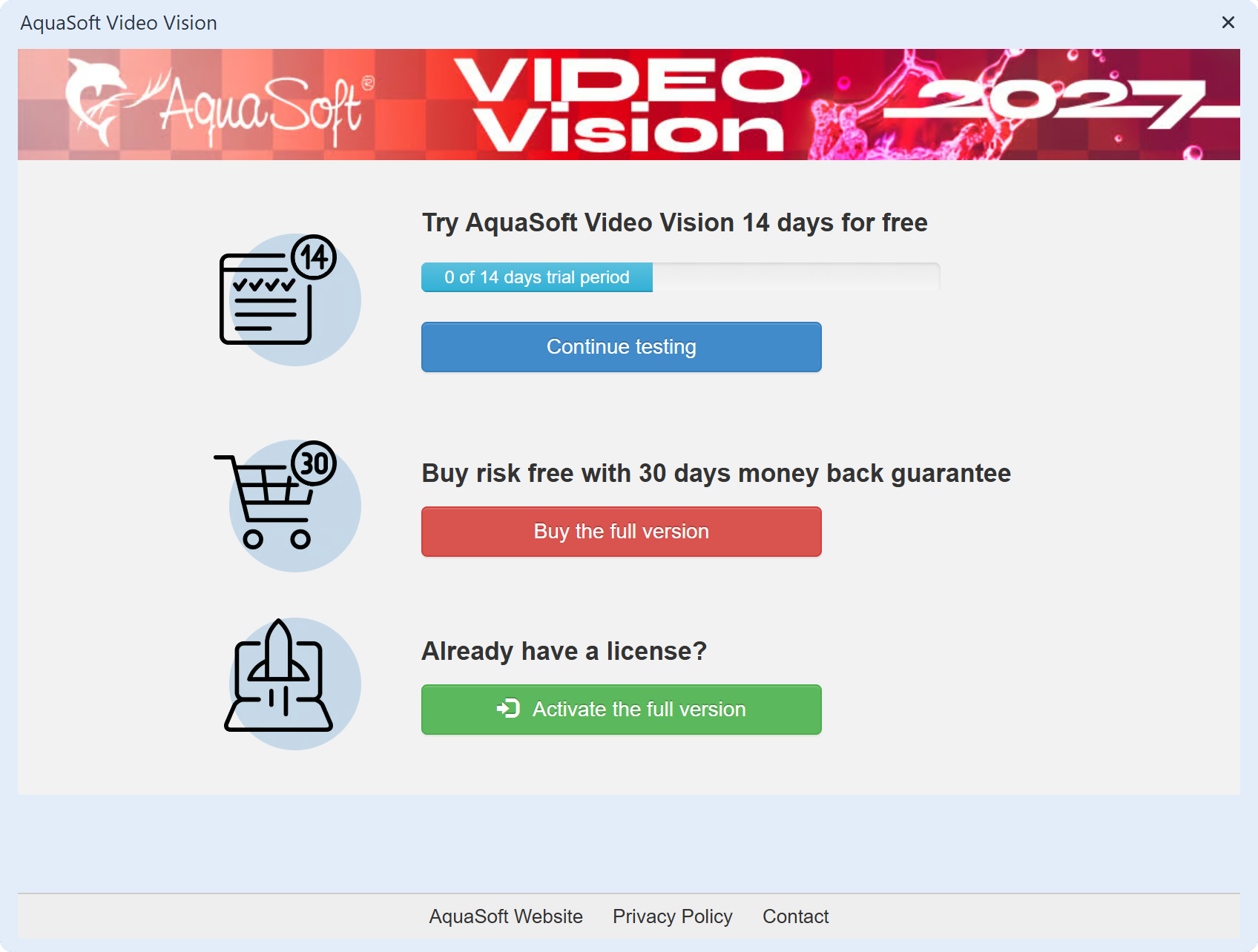 Start window with activation prompt After launching the software, you will be prompted to activate it. To do so, click the green "Activate the full version" button. You can now enter the license key you received after your purchase. Alternatively, you can use your login credentials (for the customer portal) to activate the software for your account. |
If you want to uninstall the software, you can do so in the Windows Settings under "Apps."
We also provide an uninstallation file. You can use this if you are unable to remove the program via the Window Settings. You can find the relevant file at AquaSoft Wiki: Uninstallation.