|
<< Click to Display Table of Contents >> Mask editor |
  
|
|
<< Click to Display Table of Contents >> Mask editor |
|
With the Mask editor, you can create custom masks for an image in your project. This allows you to hide or crop specific areas of the image so that only the desired areas remain visible. You can then insert these image sections into other images and combine them into collages. You can achieve particularly interesting effects by creating multiple masks from a single image and animating the individual layers differently. This creates fascinating visual effects with spatial depth and multiple image layers.
1 Open the Mask editor
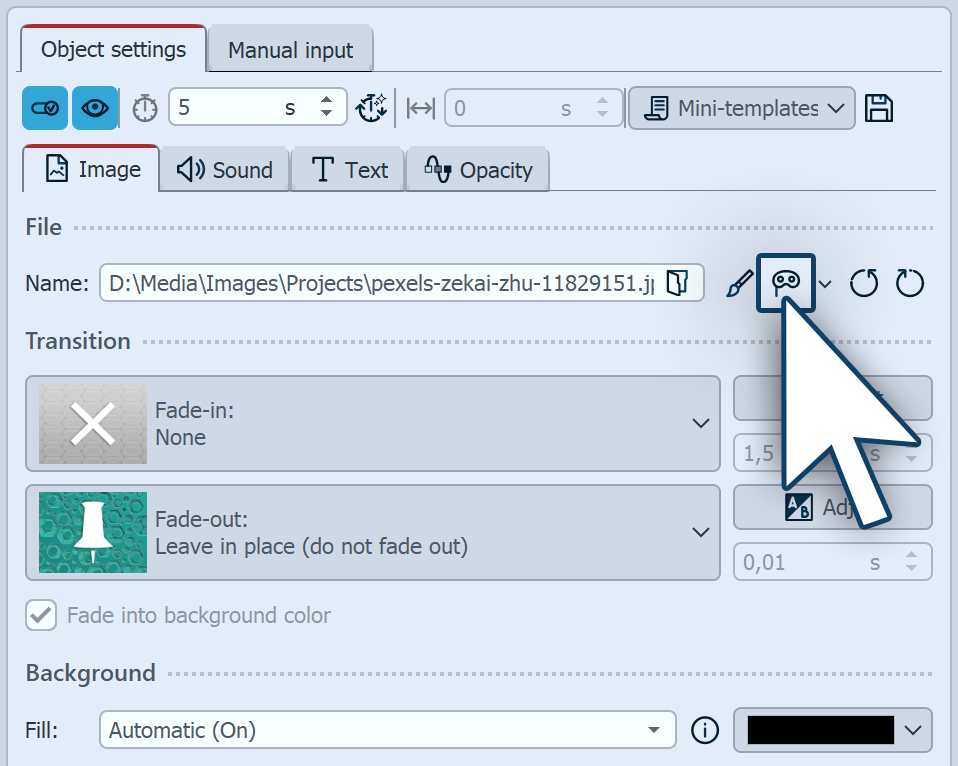 Open the Mask editor Select the image in the Timeline and click the mask icon in the Properties panel. The mask editor will open.You now have various tools at your disposal to create a mask from your image. |