|
<< Click to Display Table of Contents >> Sound |
  
|
|
<< Click to Display Table of Contents >> Sound |
|
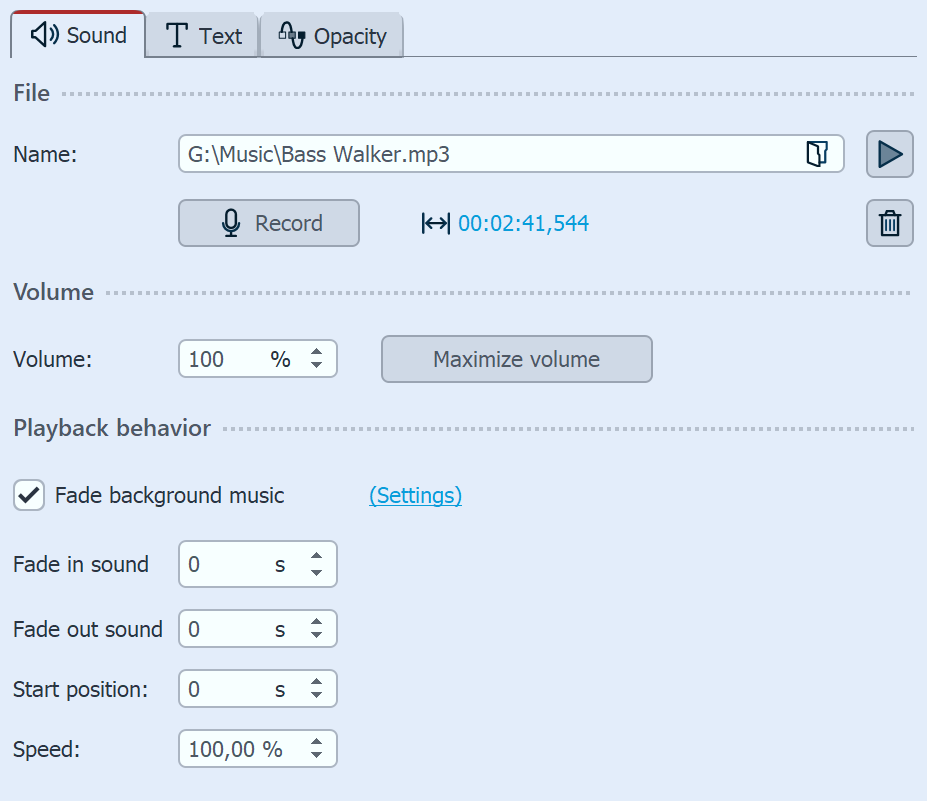 Settings for Sound object
|
|
The following settings are available for the sound object:
Volume |
Displays the volume at which the sound should be played. The unit can be changed. |
Maximize volume |
The volume of the background sound is increased so that the loudest part corresponds to 100%. |
Fade out background music |
If this option is enabled, the volume of the background music will be automatically reduced when the music file is played. You can setthe level of volume reduction in the Project settings. To do this , click the Settings button located in the Toolbar and select the Music settings option. For more information, see the "Music settings" chapter. |
Turn sound on/off: |
The sound fades in and out over the set duration. |
Starting position |
If you don't want the stored sound to play from the very beginning, you can "trim" it by entering a value at the start. |
Speed |
The sound can be played slower (<100 %) or faster (>100 %). This changes the pitch. ("Mickey Mouse effect" at a faster speed.) |
The volume of a Sound object can be set individually within the sound. You can find out more about this in the chapter "Individual volume control".
Text (e.g., a transcription)
The properties of text are described in the chapter ""Object Properties: Text".
Opacity (applies to any text that may be present)
Changing the opacity is described in the chapter "Animated transparency/Opacity".