|
<< Click to Display Table of Contents >> Video |
  
|
|
<< Click to Display Table of Contents >> Video |
|
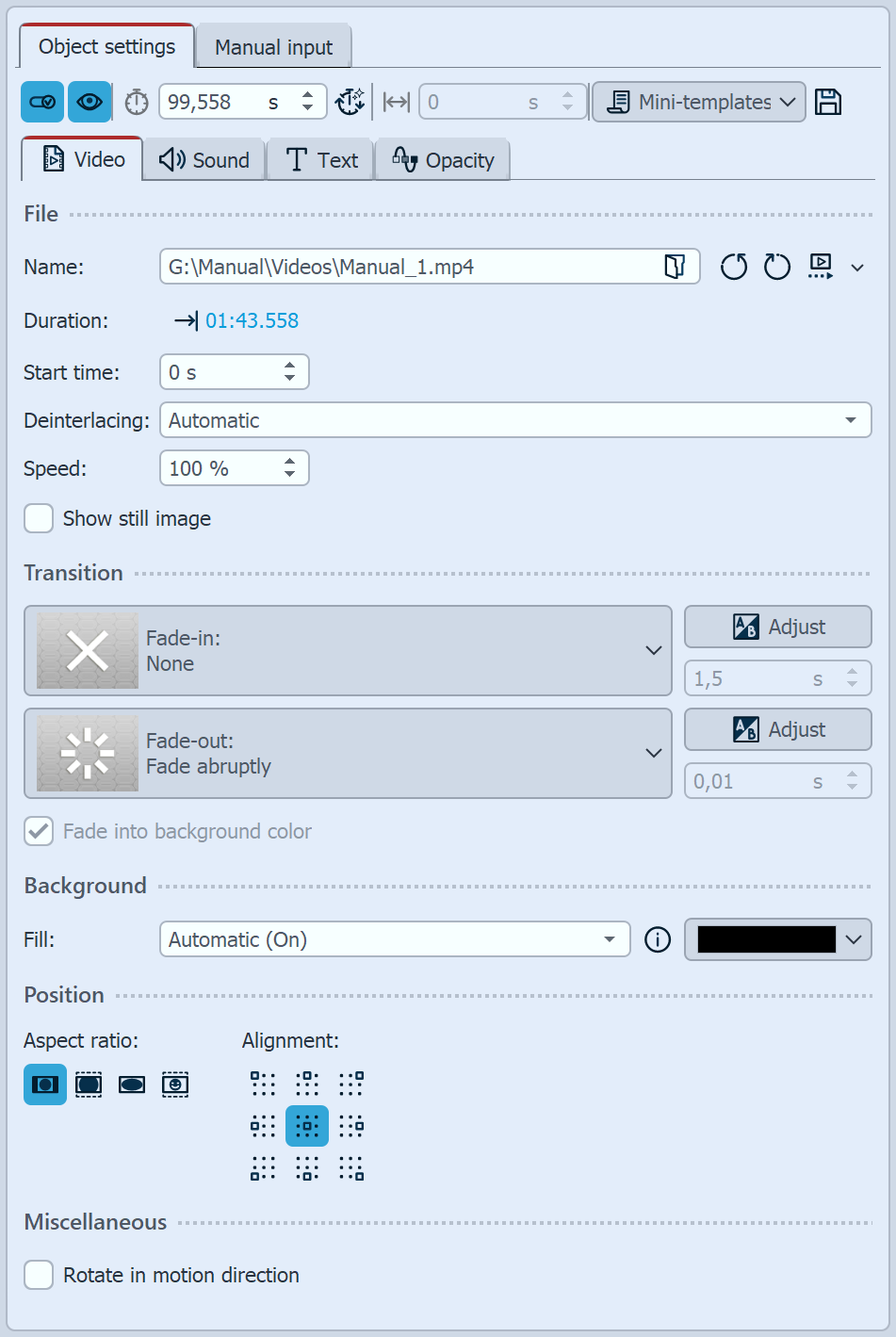 Properties for Video object In the Properties window for videos you can find the following setting options. Name: Shows you the path and file name of your video. You can also swap the video for another video file using the folder icon.
|
Duration: Once you've changed the video's playback time, you can restore the original video length by clicking on the time. |
Start time: Here you can specify the point in the video from which playback should begin. For example, if you don't want to see the first two seconds of the video, enter "2 s" in this field. |
Deinterlacing: Choose from the options Automatic, Off, and Always. Enabling this option is only useful if you are inserting videos that were recorded using the interlaced method. |
Speed: You can set it in AquaSoft Video Vision) and Stages) to set how fast or slow the video should play. Values below 100% slow down the playback speed; values above 100% speed up the playback speed. |
Still image: If this box is checked, the video will be displayed as a still image for its entire duration. The frame from the set start time will be displayed. |
Fade: A fade-in and fade-out can be assigned to the video. You can customize the fade settings using the "Adjust" option. The default settings are configured in the standard object settings. |
Fill: |
Aspect ratio: |
Alignment: defines where the video should be positioned on the screen. |
Rotate in motion direction: If you have assigned a Motion path to the video, you can have the video automatically rotate along the path. |
|
How to cut, speed up or slow down videos, see our video "AquaSoft DiaShow 10: Videoschnitt, Zeitlupe und Zeitraffer". (Link address: aquasoft.de/go/nky3) |
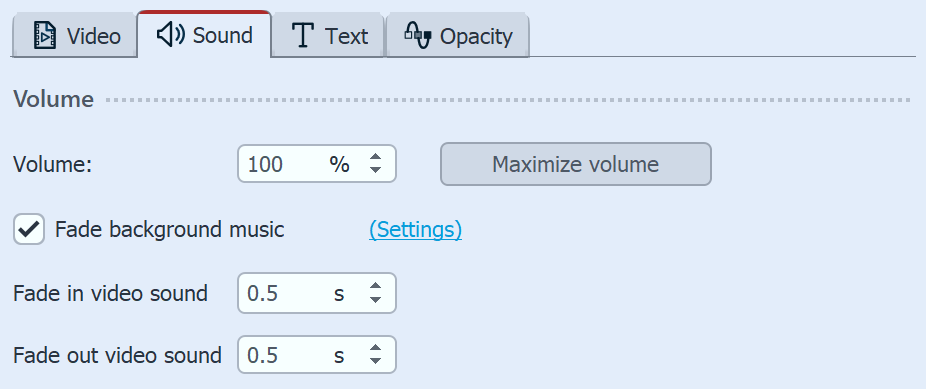 Sound of the video Here you can specify whether the background music should be faded while the video is playing. If the video has no sound of its own, but may have recorded noise, set the volume of the video to 0% and uncheck Fade background music. This way, existing background music will play while the video is running without lowering the volume. If the checkmark is set at Fade background music, existing background music will be faded (turned down) according to the music and sound settings while the video is running. Clicking the Maximize volume button raises the volume for the complete video sound of the object so that the loudest part corresponds to 100%. For Fade in video sound and Fade out video sound, enter the duration for which the video sound is to be slowly faded in or faded out. Activate/deactivate the function with the check mark. In AquaSoft Stages, the volume can also be edited directly in the Keyframe track of the video. |
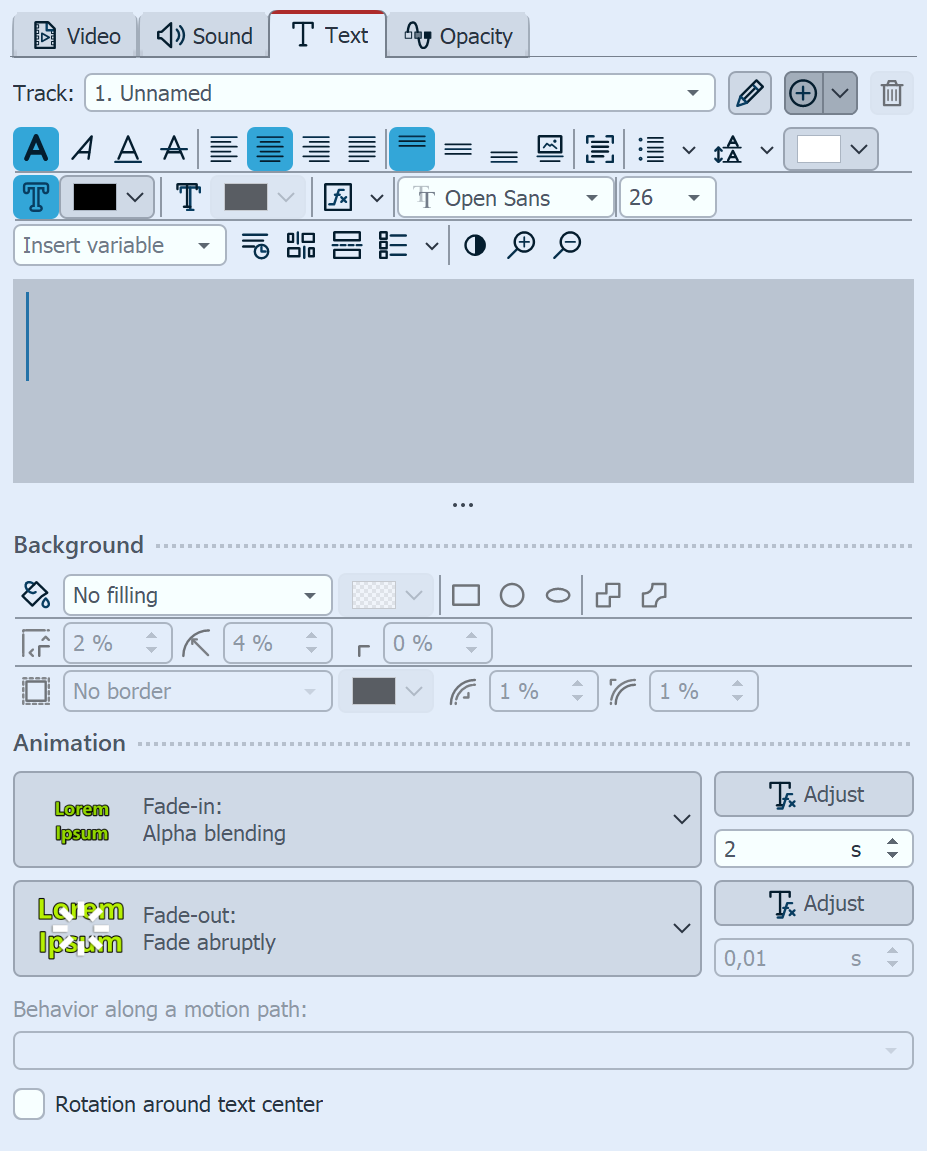 Caption of the video If text is to be displayed while the video is playing, it is stored here. VIDEO VISION STAGES You can use the track selection to store various text information on a video object. This can be, for example, labels in different languages or an automatic transcription. The track name is used for orientation.
Only one text track can be displayed when playing the video object. If a text is inserted in the text field, it is displayed for the entire duration of the object. If you do not want this, you can work with Text timing or alternatively Label the video with a text object. The detailed setting options for text design can be found in the Text object properties chapter.
|
Changing the Opacity is described in the chapter "Animated transparency".