Working with the parallel object


|
Working with the parallel object |
|
|
The parallel object helps you with special time controlled presentations.
Using a parallel object you can, for example, have several images fly over the screen at once.
1. Example: You want to fade one image into another, but the second one is to fade in after a delay.
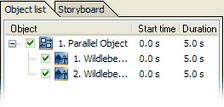
1. Click the parallel object with your mouse in the toolbox. 2. Add the first image by dragging the "Image, Text, Sound"-object with the mouse in the image list directly onto the parallel object (parallel object will be highlighted in blue). 3. Add a second image the same way. 4. Open the parallel object in the image list through a click to the plus-symbol. The images should appear as object within the parallel object.
5. Now click on the second image in the image list. In the settings of the image, click the button "Fill background".
6. Make the image in the layout designer smaller and move it to your desired position.
7. Open the parallel object in the timeline by clicking the plus-symbol.
The two images are now shown at the same time. Now we want to fade the second image in later.
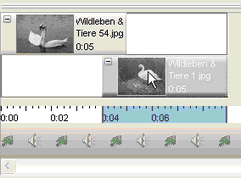
8. Click on the lower image and keep the mouse button pressed. Now drag the image to the right. In the example you see that the second image will fade in after 4 seconds.
But now the first image will disappear shortly after the second faded in.
9. Click on the end of the first image and pull its end to the right while keeping the mouse button pressed.
The second image will now fade into the first one after 4 seconds and both will be visible for 5 seconds.
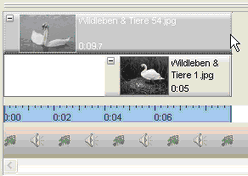
10. To only show the second image for a time and let it fade out before the end of the first image, just pull the end of the first image beyond the end of the second. This can look like on the picture below.
2. Example: Play a sound to several images, independently from the background music.
In this example we use a show with suitable background music and want to add bird sounds to three of the images. The background music will fade in the process.
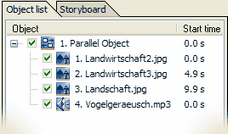
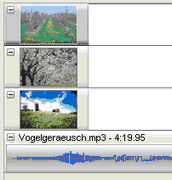
1. Click the parallel object in the toolbox with the mouse. 2. Add the first image by dragging the "Image, Text, Sound"-object with the mouse in the image list directly onto the parallel object (parallel object will be highlighted in blue). 3. Add another two images as described. 4. Add a sound object to the parallel object.
When you open the object in the timeline (click on the plus-symbol) the images and the sound are one below the other.
The objects have to be moved into the right order.
5. Move the images into a kind of staircase.
7. Highlight the sound object and remove the check at "Sound duration as object duration", if the sound is much longer than the images and you don't want to play the whole piece.
8. Now fit the length of the sound object to the display time of the images. This can be done by simply dragging the end of the object to the right to the end of the last image.
|
| Copyright © AquaSoft ® 1999-2007 www.aquasoft.de |