Animated transparency


|
Animated transparency |
|
|
For the "Image with Effects"-object, the collage- and the text-object a transparency behaviour can be set for the image/text for the time it is shown. This creates striking effects. This makes it possible to for example, let an image appear slowly out of a black background and let it sink into it later. The possible settings can be found in the object settings of the objects "Image with Effects", "Collage" and "Text".
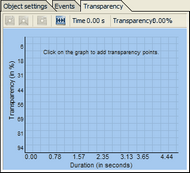
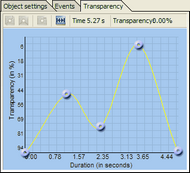
Take, for instance, the "Image with Effects" then you see a window with a coordinate system (see screenshot), which is empty at first. With a mouse click you now add points into this system, they build up the transparency curve. On the left side you find the transparency value in percent, at 100% transparency the image is completely see-through (not visible anymore), at 0% it is completely visible. Above the curve you'll find symbols, their meaning is explained in the following:
All menu items can also be accessed through a right-click on a transparency mark.
Of course it is not only possible to add and remove marks, but also to move them. To do that click a mark and move the point with the mouse button pressed. To delete the whole animated transparency you have to remove each transparency mark.
To use the effect "Animated Transparency" you have to choose an according object in AquaSoft ® SlideShow XP five & Studio. You can save transparency information in the "Image with Effects", in the collage and the "Text" object.
See also the Ken Burns Effect - tutorial, here the animated transparency is shown in action.
|
| Copyright © AquaSoft ® 1999-2007 www.aquasoft.de |