Movements


|
Movements |
|
|
Your images learn to walk. With a few clicks they start wandering over the screen. Just follow this guide and you will be quickly and easily initiated into the colorful, moving world of AquaSoft ® SlideShow XP five & Studio.
Create a new slide show
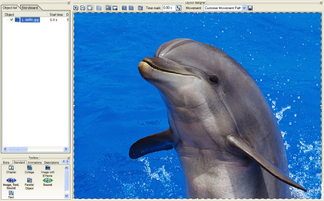
Now choose an image. Click on it in the image list so that it shows in the layout designer.
Now click the Because we don't want a zoom right now and the image is not supposed to change size over it's journey, we turn off the individual resizing.
Choose the second move point and click it with the right mouse button. A context menu will appear.
Here you choose "Position frame" / "Use size of previous item". This way the size of the second movement mark, and all that follow, matches the first one exactly and it cannot be changed accidentally.
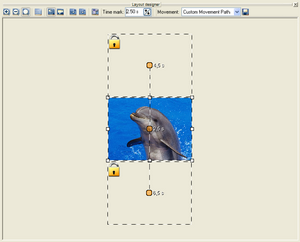
As you probably noticed, each movement mark stands for a position that the image will fly to during playback. In our case it should now fly out of the screen and back in. Use the Now click the first mark and raise the time through
Press
Now add another movement mark underneath the first one.
A click on Experiment with the setting a little bit. Or you can now switch to zooms or camera pans. |
| Copyright © AquaSoft ® 1999-2007 www.aquasoft.de |


 and drag and drop the "Image with effects" from the toolbox into the object list.

 symbol. This adds a move point. Around this point a frame is drawn. You can move this like any image.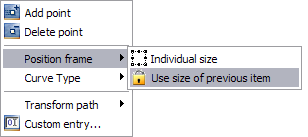

 in the layout designer.
 to zoom out. This way you can see the area that's invisible during playback. Position the second movement mark above the first one.
 to 2.5 seconds. The image will remain on the screen for 2.5 seconds before it starts flying, you can peacefully enjoy the transition. As you can see the time of the second movement mark is automatically moved up.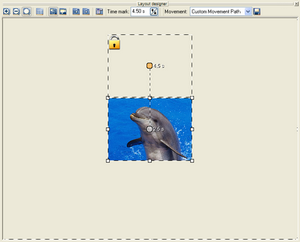
 to see the image fly out of the screen.