Movement Paths


|
Movement Paths |
|
|
Movement paths makes your slide show hum. This is where your images learn to fly.
You can assign movement paths to the following objects:
Tools:
The necessary tools can be found in the layout designer.
Sets the time of a movement path.
Loads a saved movement path.
Through a right click on a movement mark you can open another menu.
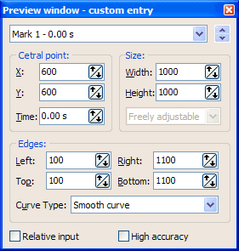
You can also set the coordinates for each movement mark manually. Use the "Custom entry..." you can find in the above menu.
The 1st example you can find in the movements tutorial:
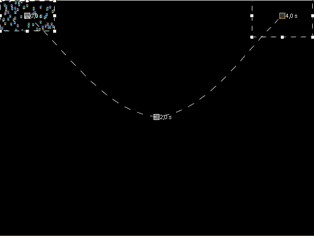
2nd Example: Particle object combined with a movement path.
Click in the toolbox under "Extra" on the particle object and then choose an image.
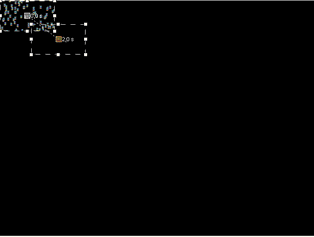
Click the particle object in the object list. Make the display window smaller using the position frame, and move it to one top corner.
Raise the number of particles in the object settings.
Add a new movement mark through a click to the
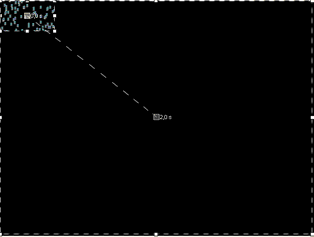
Now enlarge the movement mark via the position frame to the full size of the layout designer, with the mark in the center.
Start the show with a click to the
This way you can create many animations, like fireworks and explosions.
The pieces can also be "caught" again.
Add another movement mark through a click on the
|
| Copyright © AquaSoft ® 1999-2007 www.aquasoft.de |
 Image with Effects




 Saves a movement path.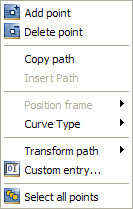



 .
.