Text animations


|
Text animations |
|
|
Not only images can be animated in AquaSoft ® SlideShow XP five & Studio, texts too can gain some spin.
The text object from the toolbox allows you to animate it in many ways.
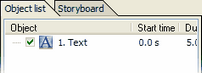
Add a text object to the slide show by clicking on it in the toolbox.
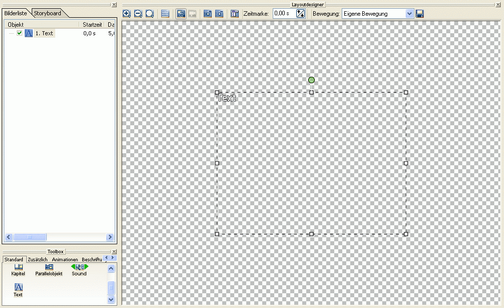
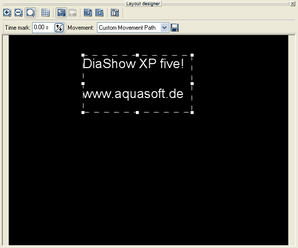
Now click on the text object and you will see a frame in the layout designer.
Your text will be shown in this frame. Through the 8 fix-points you can change the size of the object.
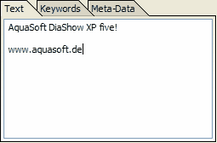
In "Text" you can enter your text.
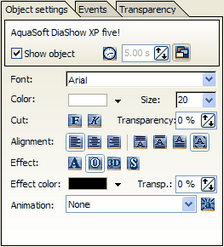
You can now adjust the text settings (font, color, size, etc.).
Position your text where you want it through a click to the text field.
Now you can choose a preset text animation in "Animation".
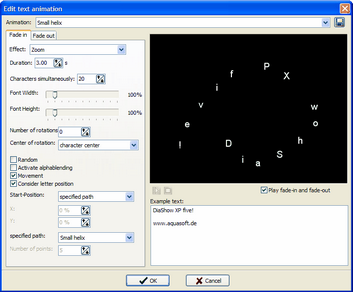
To adjust this animation to your liking, click the
You can make any change to the text animation here. The text cannot be changed through this window. Confirm your settings with "OK" and you will return to the slide show.
|
| Copyright © AquaSoft ® 1999-2007 www.aquasoft.de |

 button. A window opens where you can make individual changes.