Image transitions


|
Image transitions |
|
|
AquaSoft ® SlideShow XP five & Studio offers a great variety of image transitions, each of them can also be adjusted individually. To gain insight into the possibilities of the transition, add an "Image, Text, Sound"-object or an "Image with Effects" to the image list. Highlight the image.
In the object settings you can now choose one of the predefined transitions.
With a click to the
You can also choose a different transition here. You can see the transition in the preview window.
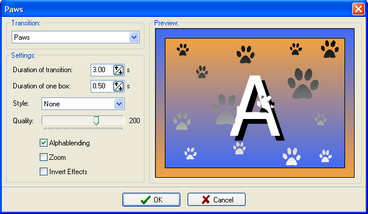
Duration of Transition: The duration of the transition sets how long the image will take to enter the screen until it becomes a full still image. Is the duration of the image 5 seconds, the settings above will have the image fade in softly for 3 seconds and then rest for 2 seconds until the next image starts fading in.
Duration of One Box: Transitions are made up of boxes. The duration of one box indicates how long it takes one box to turn from invisible to fully visible.
Style: The style can be changed for some transitions, not for all. For the transition "Blinds" for example, the style decides from which side the blinds fade in.
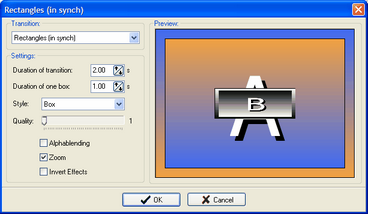
Quality: Here you set the quality of the transition. The higher your set it, the more power your PC is going to need to show the transition. You should bear your computer's power in mind for this setting. Is the quality set too high, it might result in "jumps" during the transition. In this case you should choose a slightly lower quality. The transitions are made up of boxes. The control defines the size of the boxes used, at the same time. For some transitions, as for example rectangles, the change of box size, or quality, can create a new effect that has nothing to do with lower quality. Look at the image below, the effect is clearly visible there.
Alphablending: Alphablending makes for a smooth transition of images.
Zoom: This can be used to simulate zooms in certain transitions.
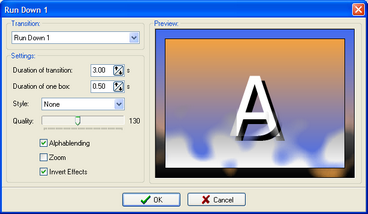
Invert Effect: Some transitions can be inverted. In the following picture the transition now happens from bottom to top.
Not all settings are available for all transitions.
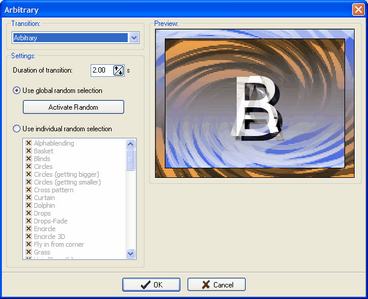
If you would rather be surprised by the next transition, choose the option "Random" transition.
Set Global Random Selection: Here you can set which transitions are supposed to be used and which ones you do not want. This setting applies to the whole slide show. For every image for which you set a random transition, this list is used.
Use Individual Selection: Here you can choose the transitions to be used for the current image. This setting only applies to this image, not the rest of the show. |
| Copyright © AquaSoft ® 1999-2007 www.aquasoft.de |
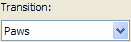
 button you can make individual changes to the transition.