Zoom


|
Zoom |
|
|
Zooming is one of the newer features of AquaSoft ® SlideShow XP five & Studio. On the basis of this minimal show, the creating of a beautiful zoom-effect will be shown. I can't hurt to have read over the tutorial movements, because zooming is based on the system of movement paths.
Simple zooming into a picture
Create a new slide show
Now choose an image. Click on it in the image list so that it is shown in the layout designer.
Choose the
Now click the
After you click
Zooming in and out combined
Create a new slide show
Now choose an image. Click on it in the image list so that it is shown in the layout designer.
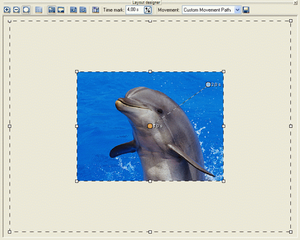
Now click the
Every movement mark has time data, that can be changed at any juncture. We leave it as it is, for now. Our image should became really small at replay and move into the upper right corner; we zoom out.
You see how easy it is to zoom in and out of images. Just add a movement mark, put it where you want it - and there's movement in your image.
Now click
Now we will zoom back into the image.
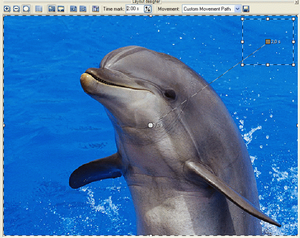
For this add another movement mark with a click on Now blow up the position frame of the third movement mark until it almost fills the whole screen and position it on top of the first movement mark. It will automatically snap into the right position over the first mark.
After a click on
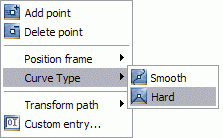
Maybe you will notice that the image describes an arc at the second movement mark and doesn't immediately return to you. This effect can be adjusted through the Curve Type. Choose the second movement mark and right-click on it. In the now opened context menu choose "Curve Type" / "Hard".
You can see the change in the shape of the movement mark. It is now square to visualize the chosen curve type.
After a click on
|
| Copyright © AquaSoft ® 1999-2007 www.aquasoft.de |


 and click an "Image with Effects" in the toolbox to add it to the image list.

 symbol at the top edge of the layout designer to switch to the camera-pan mode.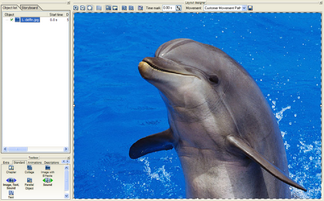
 symbol. It adds a movement mark. Around this mark a frame will be shown. Reduce the size of this mark by using the the frame and move it to the position you want to enlarge.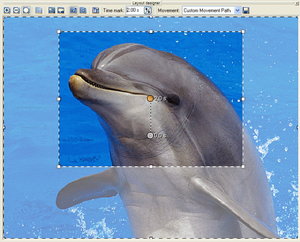
 the zoom effect will be played.
 symbol at the top edge of the layout designer is selected. Otherwise you will be in the camera-pan mode.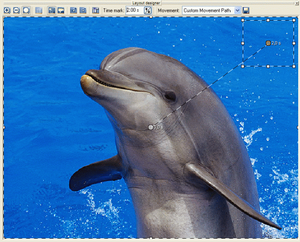

 symbol.
 symbol.