Collage


|
Collage |
|
|
You can create a beautiful collage with only a few steps.
Drag the collage-object from the toolbox into the image list.
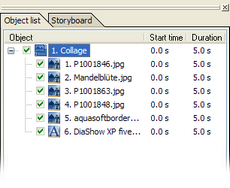
This adds a collage to your slide show. Click on this collage in the image list and you will see a message in the layout designer telling you, that the collage is empty at the moment. To fill it just click the "Image, Text, Sound"-object in the toolbox.
A dialog appears where you can choose all images you want to use for the collage.
They are added to the collage because it was highlighted. When you click the Now click on each image in turn and move and resize them at whim until you like the result.
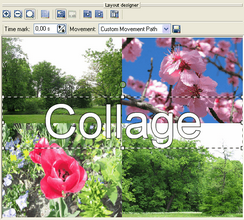
Now add a text object from the toolbox and position it wherever you want it.
Now your collage is almost finished. You have images and test. The images can also overlap. And you can create a "picture-in-picture" – effect when you leave the first image in full screen size.
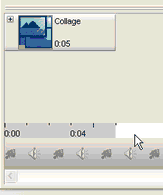
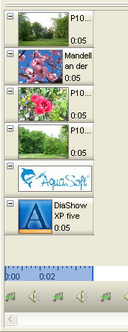
You can open the collage in the timeline by clicking the same
As you can see assembling a respectable collage is quick and easy. Just play around with the images until you like what you see.
|
| Copyright © AquaSoft ® 1999-2007 www.aquasoft.de |


 next to the object you can look at all images contained in the collage.