Image, Text, Sound - Object


|
Image, Text, Sound - Object |
|
|
On standard images are added to the slide show as "Image, Text, Sound"-objects. This means, that the image can have a text and a sound assigned.
The blue triangles around the object in the toolbox indicate that images are added as "Image, Text, Sound"-objects over the aforementioned way. Should that not be the case for you, you can set the object as "Standard for image files" through a right click on the object in the toolbox.
Set image properties
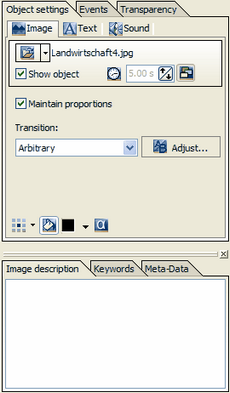
Every image can have certain settings assigned. Highlight the desired image with the mouse. In "Object Settings" you can now change many details concerning the image.
Image:
You can remove the image by clicking the black triangle.
Maintain proportions: The ratio between width and height of the original image may differ from those of your screen. With this box checked, the proportions of the image will not be changed. If the image's aspect ration differs from the screen's margins will be shown.
AquaSoft ® SlideShow XP five & Studio offers a large number of transitions. With a click on the box you can choose one preset transition. The setting "Arbitrary" chooses a transition at playback. This way you will get to see a different transition with every playback. Click the A/B-button to make even more detailed settings for your transition. You can find more on that here.
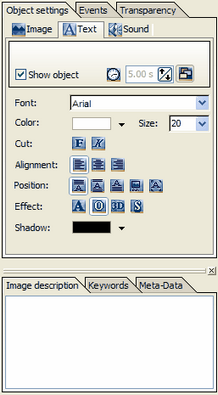
Text:
You can assign text to any image that has been added as an "Image, Text, Sound"-object. This is shown as a comment to the image.
Enter your text in "image description". Now you can set font, color, alignment and more.
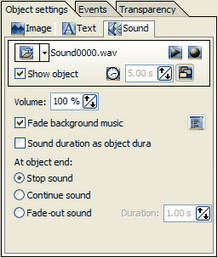
Sound:
In sound you can add a comment or a fitting sound to your image. This is not the setting for background music. The background music can fade during playback of a sound.
Through the folder symbol you can add a sound file or remove it. The chosen title is shown on the right of the symbol.
Volume: Shows the volume that applies to the sound during playback.
Fade background music: Is this option activated, the background music will fade out (lower volume) while the sound plays. How low the music is supposed to get, you can set in the slide show settings that can be reached through the button
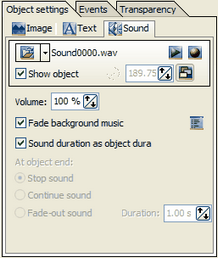
Sound duration as object duration: Every image has a duration. Usually 5 seconds. But your recorded comment may be longer than this image duration. In this case the image would fade into the next one, while the comment is still playing. Activate this function to have the image remain on screen for as long as the comment plays. The duration of the image will be fit to the length of the comment or music.
If you want to let the comment flow over into the next image, you have to remove the check at "Sound duration as image duration". You also need to do that when the duration of the image is not supposed to be fit to the length of the music file.
Now you can decide what is supposed to happen to the music file or comment at the end of the image (=object end). - Stop sound: At the end of the image duration the sound is stopped. - Continue sound: The sound is let to play until it is over. You cannot stop the sound again before its end. - Fade-out sound: The sound fades out. You can set the length of the fade-out.
|
| Copyright © AquaSoft ® 1999-2007 www.aquasoft.de |


 - symbol or the menu point "Add" / "Add Images".






 ("Fill Background") has to be activated. Is this button not activate, you will see the previous image in the background.

 Plays the sound file.
 Opens the sound wizard. This wizard can be used to record sound through a microphone connected to your computer. More about the Sound Wizard can be found
  . More about the music settings can be found