Image with Effects


|
Image with Effects |
|
|
The object "Image with Effects" is meant for special animations. This image can be made mobile with movement paths, transparency, pans, zooms and rotations*.
You can remove the image by clicking the black triangle.
Maintain proportions: The ratio between width and height of the original image may differ from those of your screen. With this box checked, the proportions of the image will not be changed. If the image's aspect ration differs from the screen's margins will be shown.
AquaSoft ® SlideShow XP five & Studio offers a large number of transitions. With a click on the box you can choose one preset transition. The setting "Arbitrary" chooses a transition at playback. This way you will get to see a different transition with every playback. Click the A/B-button to make even more detailed settings for your transition. You can find more on that here.
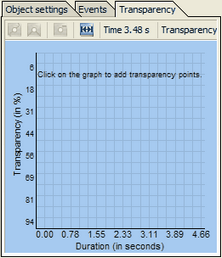
For the image with effects you can set a transparency effect under the tab "Transparency".
More on the subject of "Animated Transparency" you can find here.
*The functionality Rotation is only available in AquaSoft ® DiaShow Studio .
|
| Copyright © AquaSoft ® 1999-2007 www.aquasoft.de |
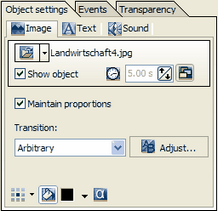






 ("Fill Background") has to be activated. Is this button not activate, you will see the previous image in the background.