Particle object


|
Particle object |
|
|
The particle object shows your image, or your images, in reduced form and animated them on screen.
Click the particle object in the toolbox under "Extra" and then choose an image.
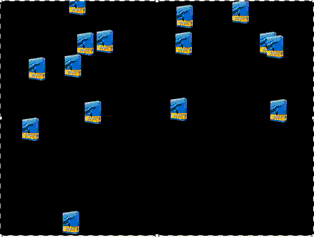
Now click on the particle object in the object list. The layout designer now shows many small versions your image.
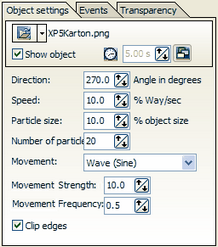
In the object settings of the particle object you can adjust the view to your liking.
You can remove the image by clicking the black triangle.
Under direction you can set into which direction the particles are supposed to vanish.
Directions:
You set the speed of the movement under "Speed". The higher the number, the faster the particles move over the screen. The value 0 equals no speed, the particles rest.
Here you set the size of the particles. The size is being calculated on the base of the position frame in the layout designer. Does the position frame fill the whole size of the layout designer and the particle size is set to 10%, the particles will have 10% of the sieze of the position frame. Reduce the size of the frame and the particles will become smaller.
Through the number of particles you set the number of small images to be shown.
Here you can choose an animation for the particles.
This sets the power of the movement. The higher the number, the more prominent the animation becomes.
The frequency determines how often the movement should be done. The smaller the number, the fewer the number of repetitions.
Changes in the object settings have to be confirmed with the "Enter"-key. Only then will the settings become effective.
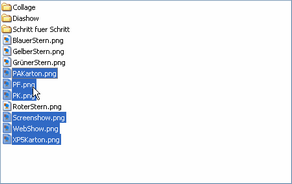
Note: You can also use more than one image in a particle object. For that, click the folder next to the filename in the settings.
Now choose several images and keep the "Ctrl"-key pressed.
Now the particle object consists of a number of images.
In addition the Particle object can be enhanced with movement paths. And in AquaSoft ® DiaShow Studio you can rotate the Particle object. |
| Copyright © AquaSoft ® 1999-2007 www.aquasoft.de |